

GPT image 2.5 AI Image Generator & Editor
Create with GPT image 2.5, from your first idea to the image you want to share. Turn a prompt or reference photo into product shots, portraits, posters and social visuals. Describe your vision, refine the details and make it yours.
Create in your browser · Text and reference images · Credits shown before generation
Prompt inspiration
Find inspiration for your next GPT image 2.5 creation
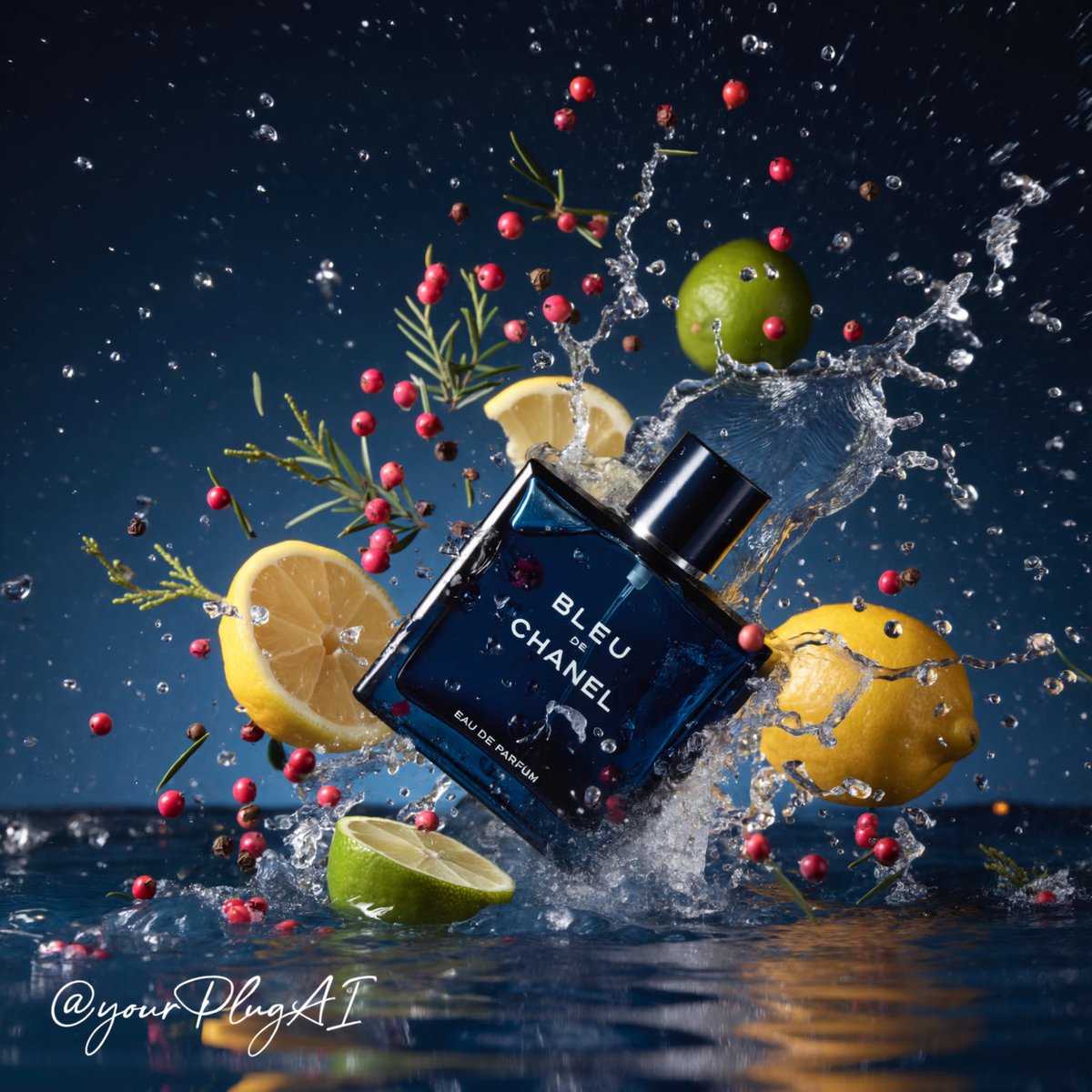
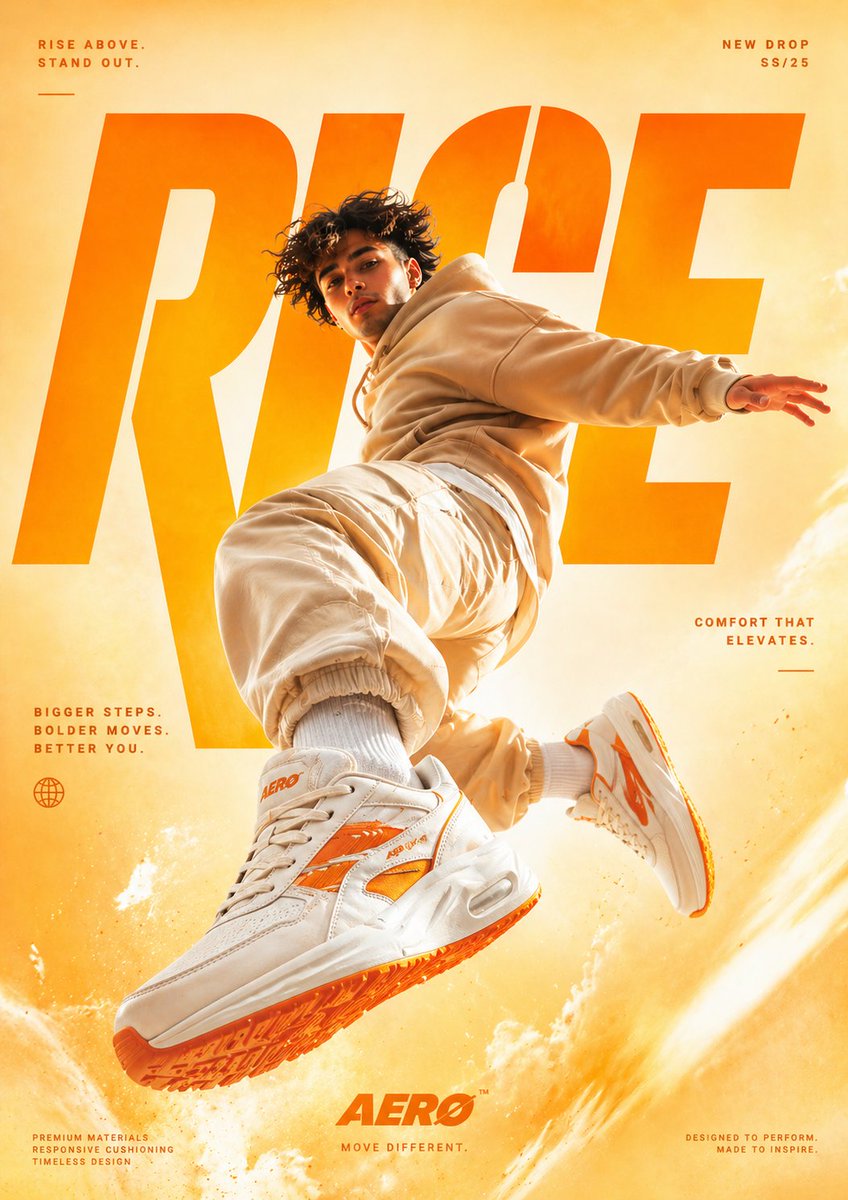
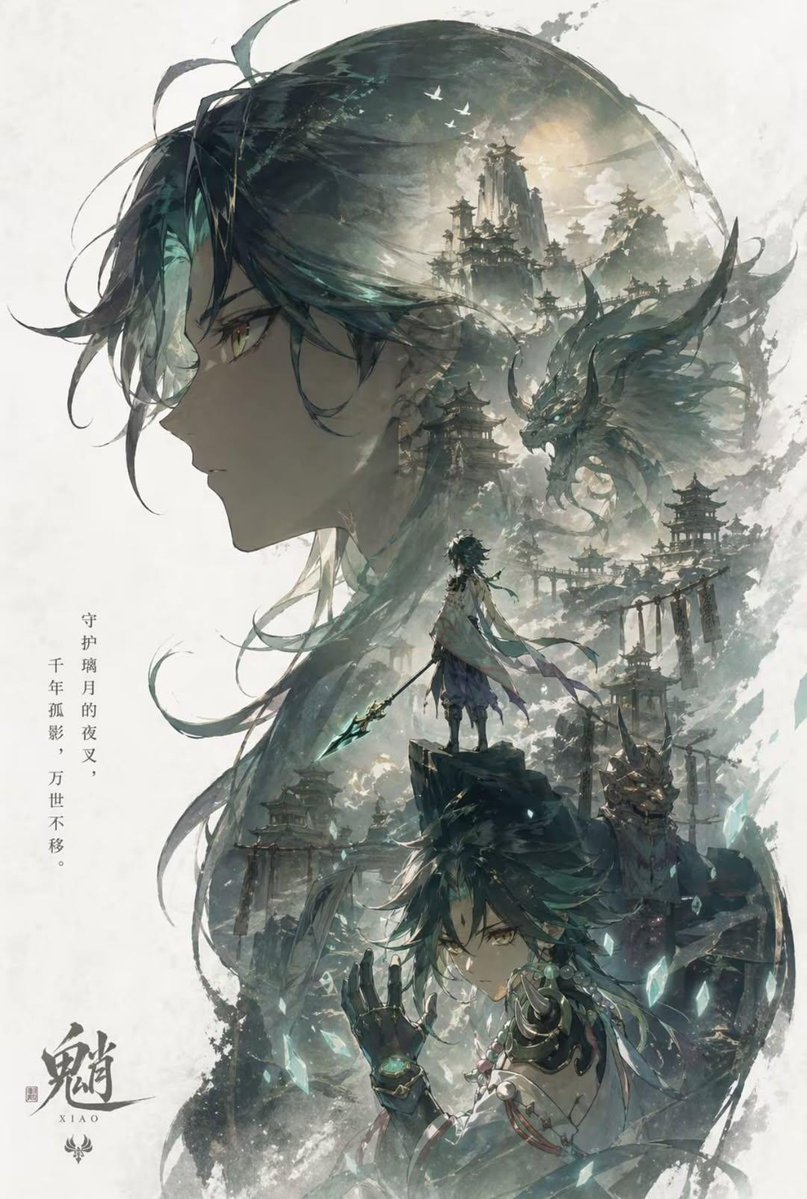
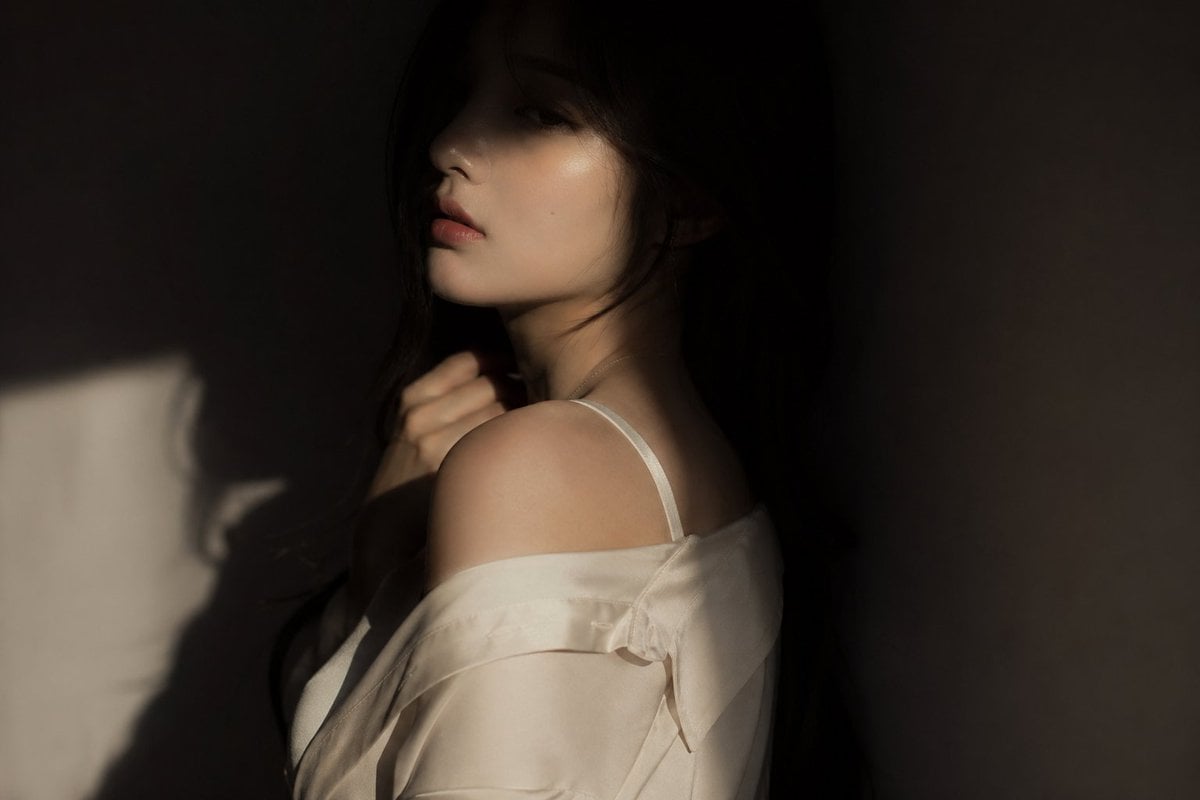
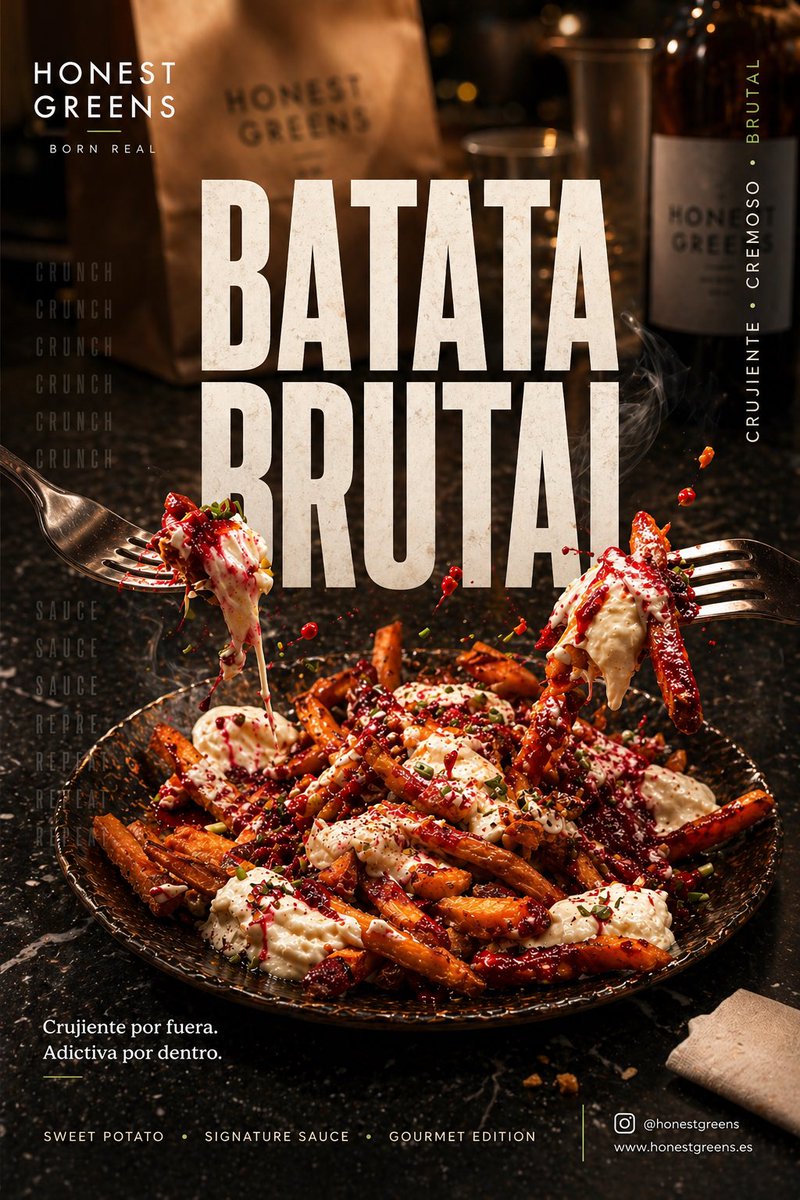
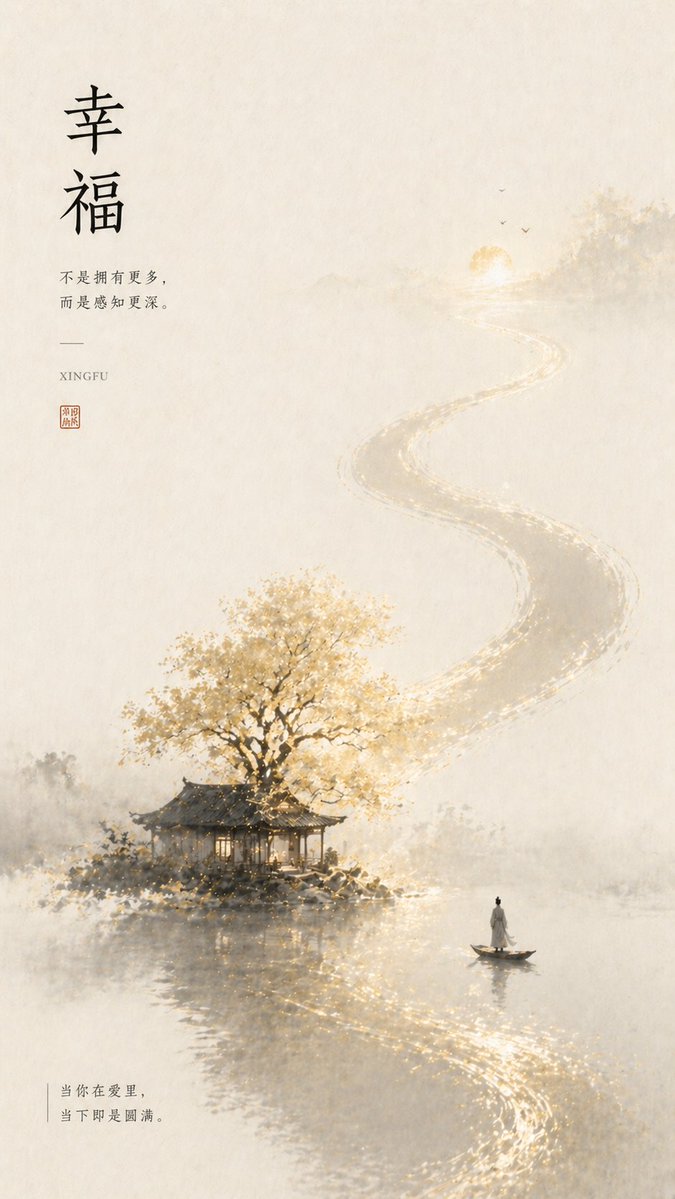
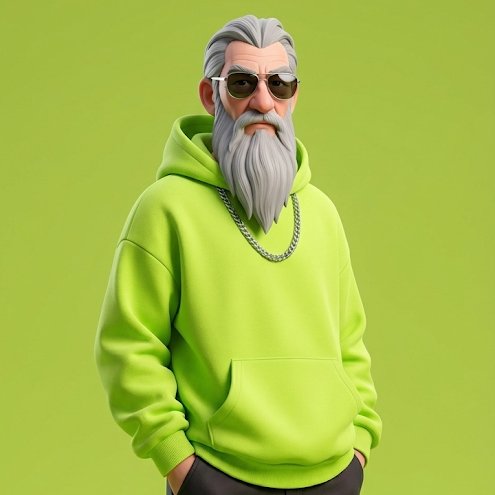
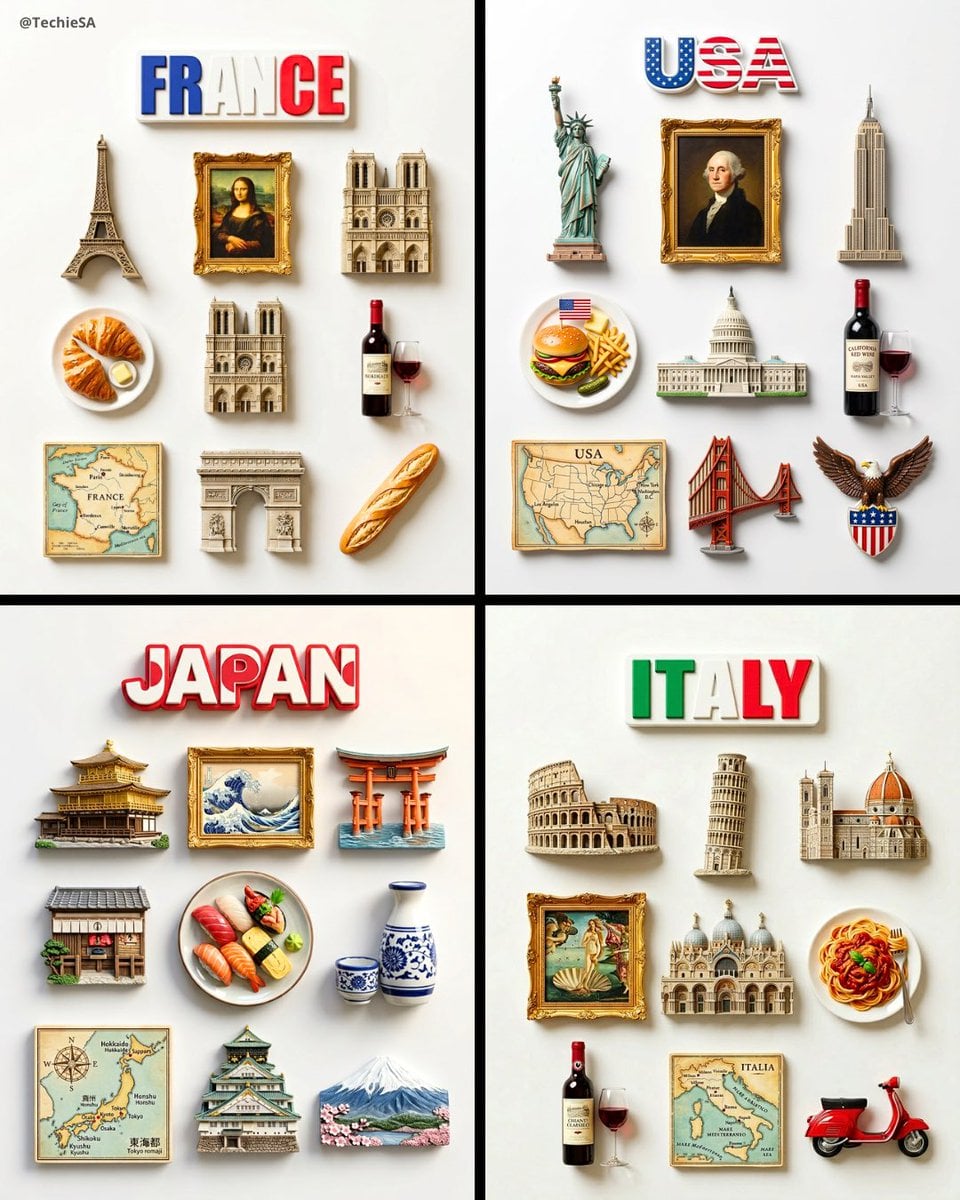
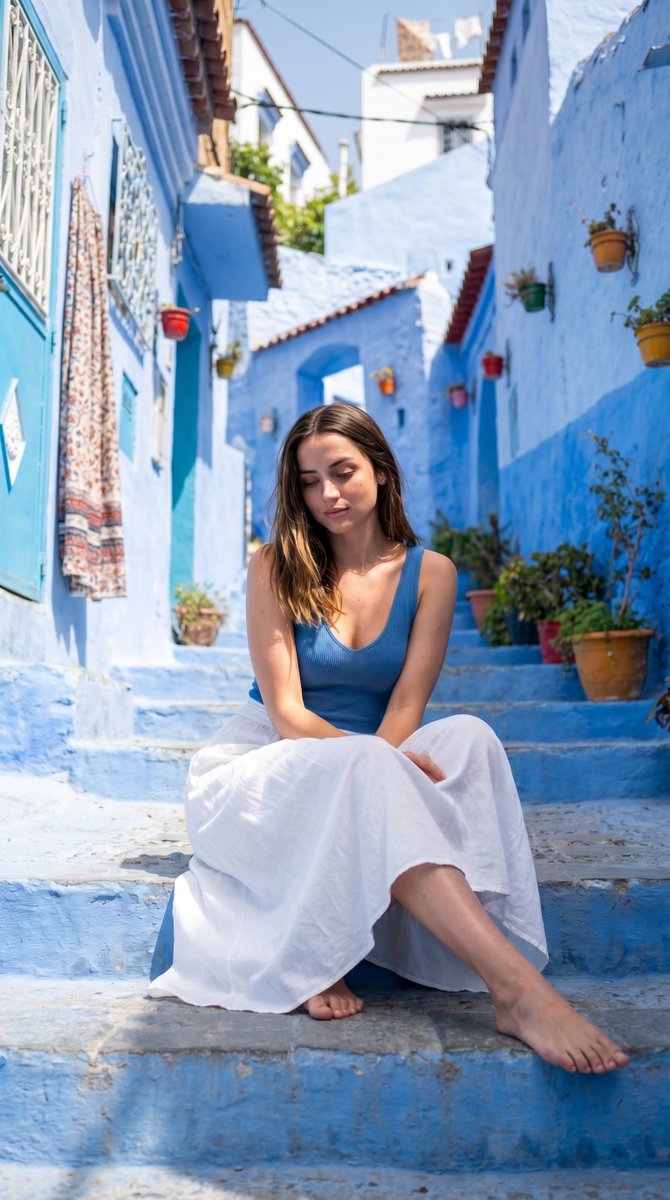
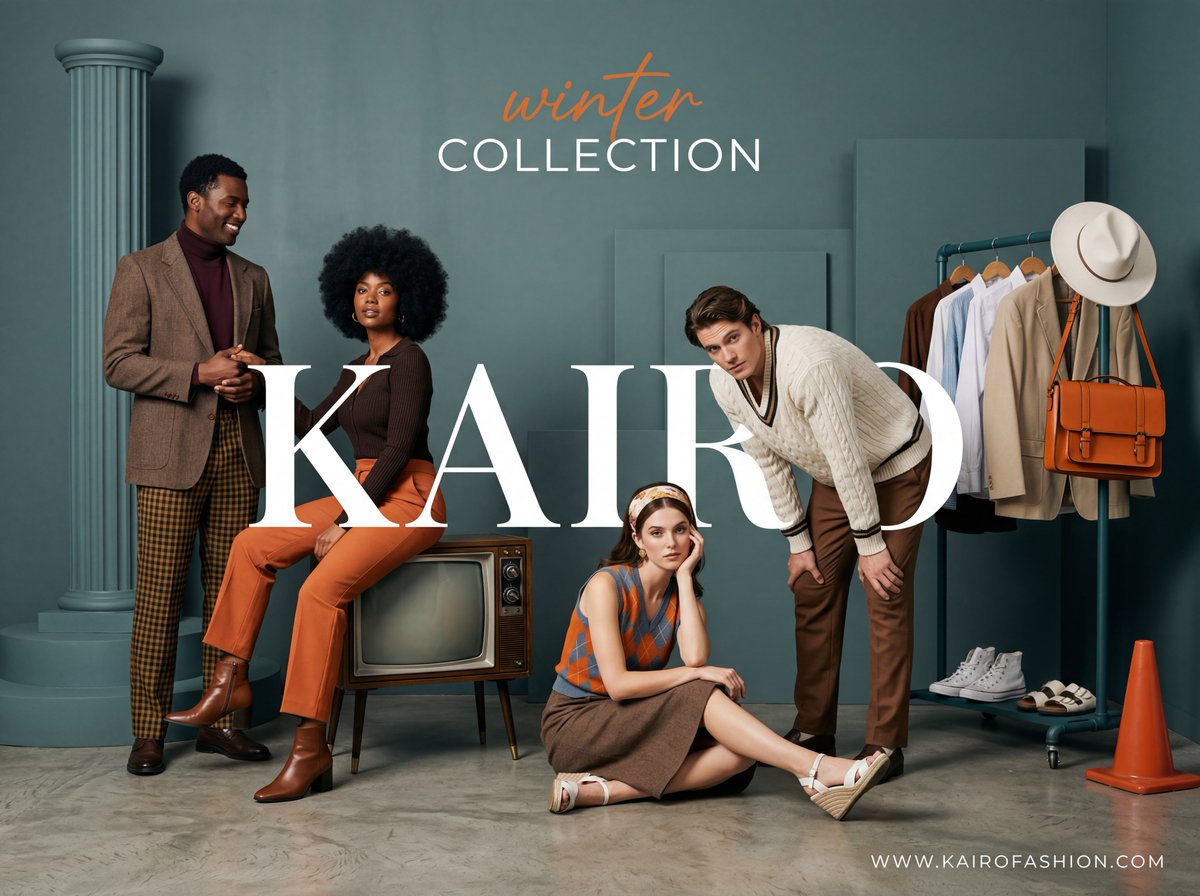
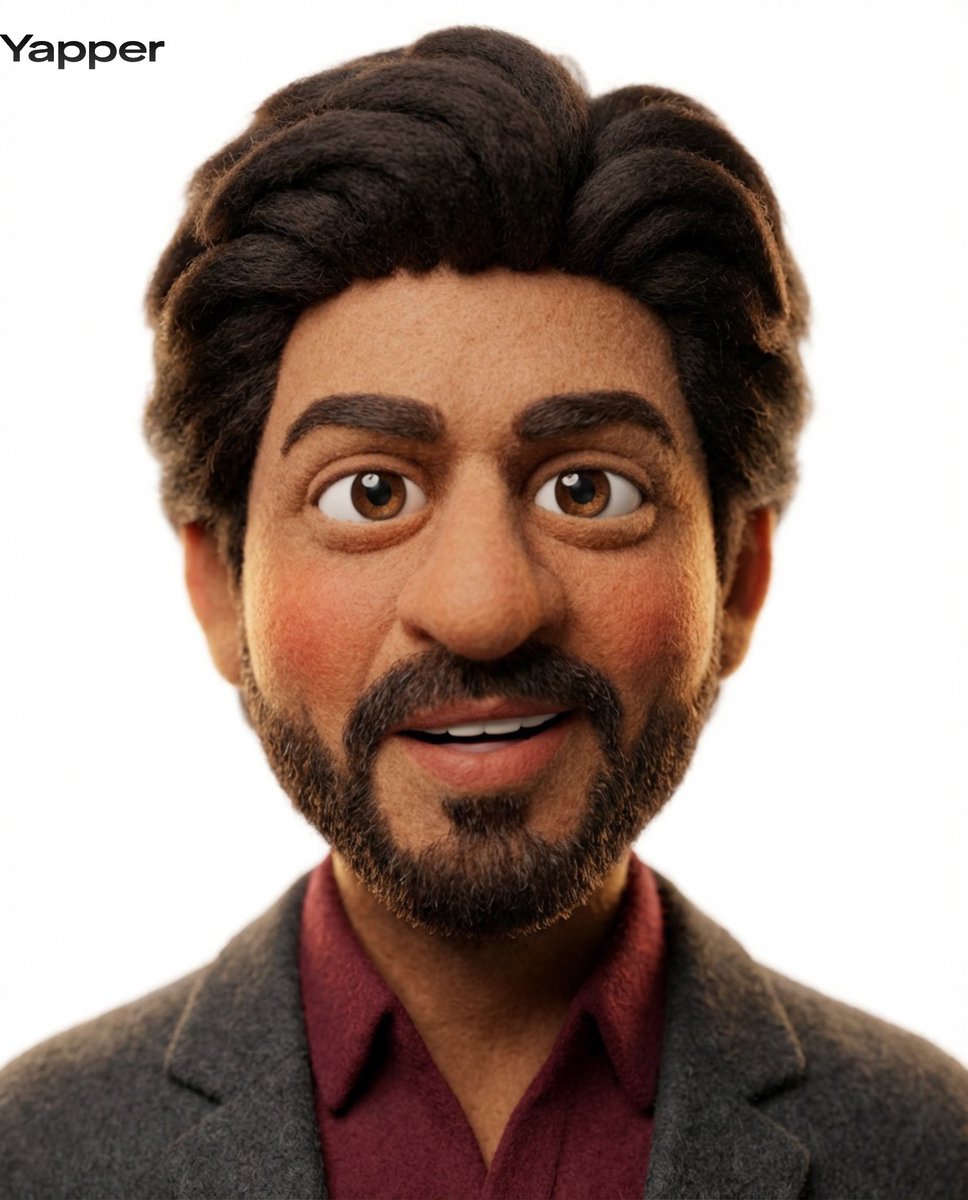
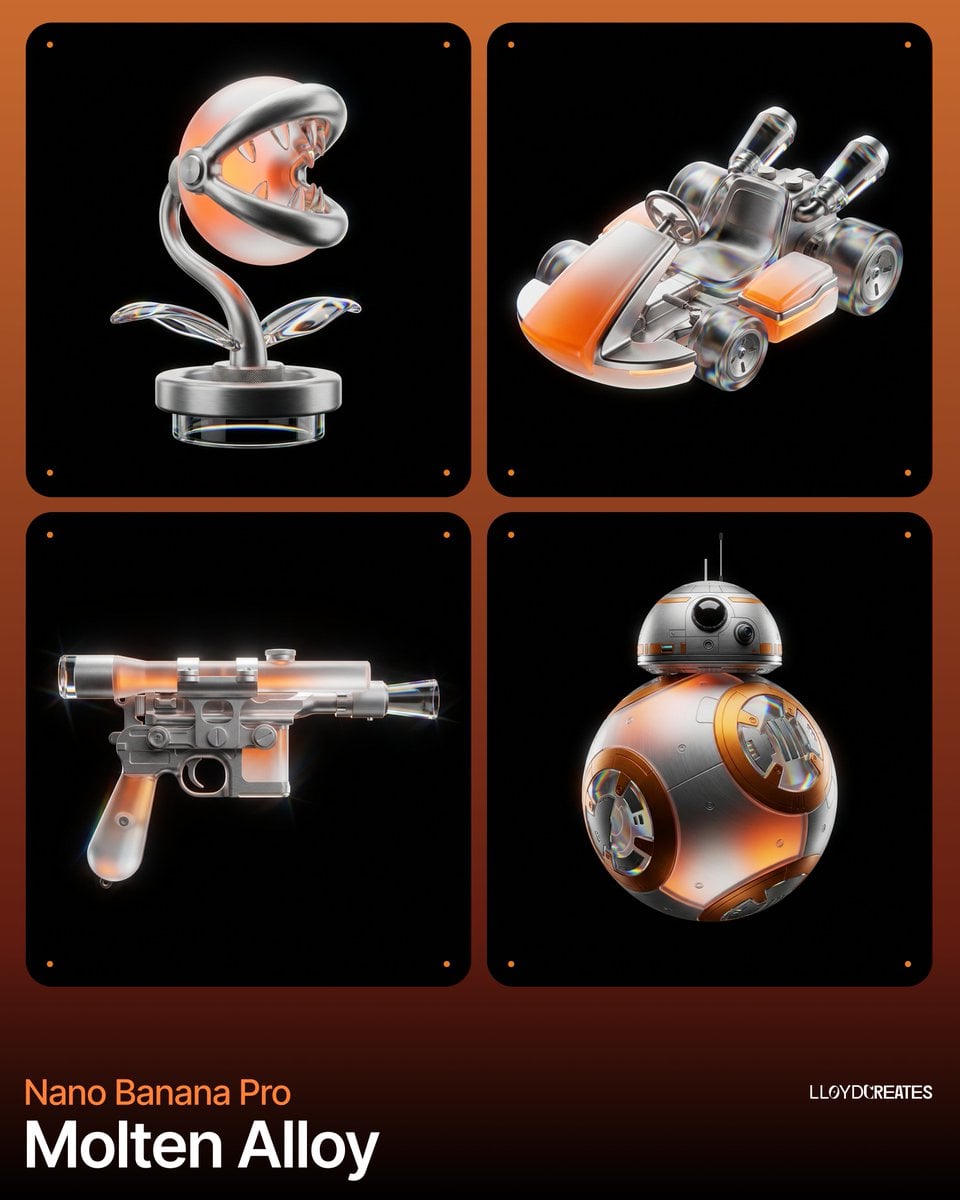
Explore compositions, lighting and styles for your next GPT image 2.5 prompt. Open a gallery card to see its prompt and source, then adapt the subject, colors and framing to your own project.

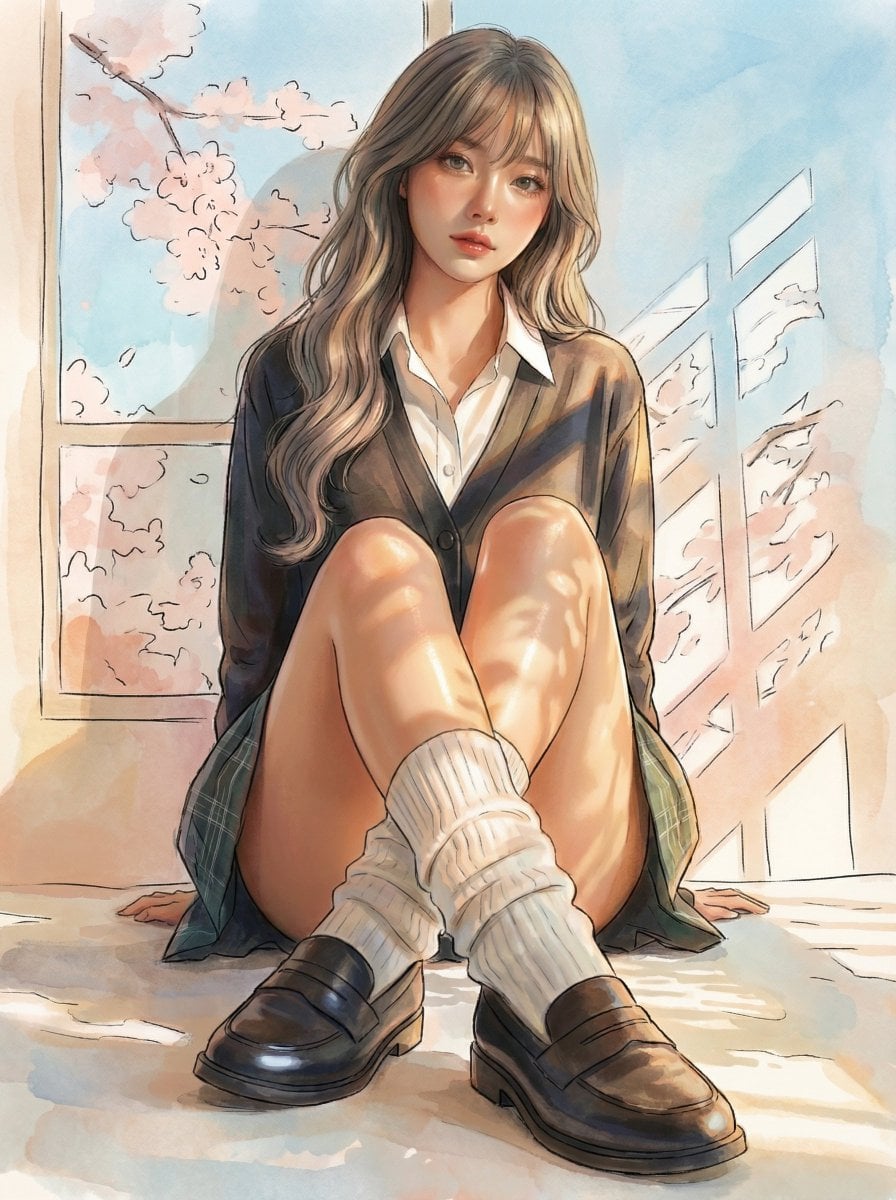
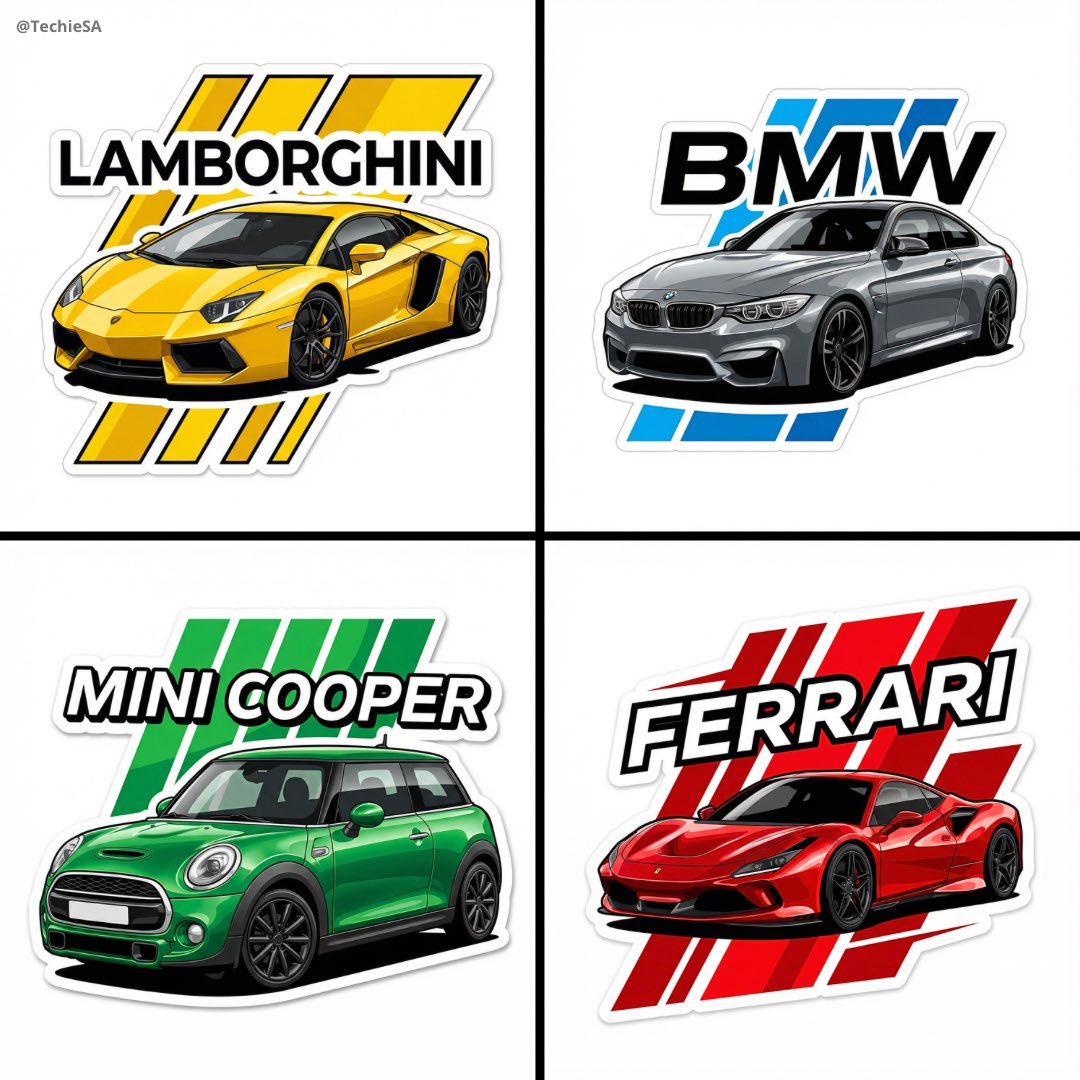
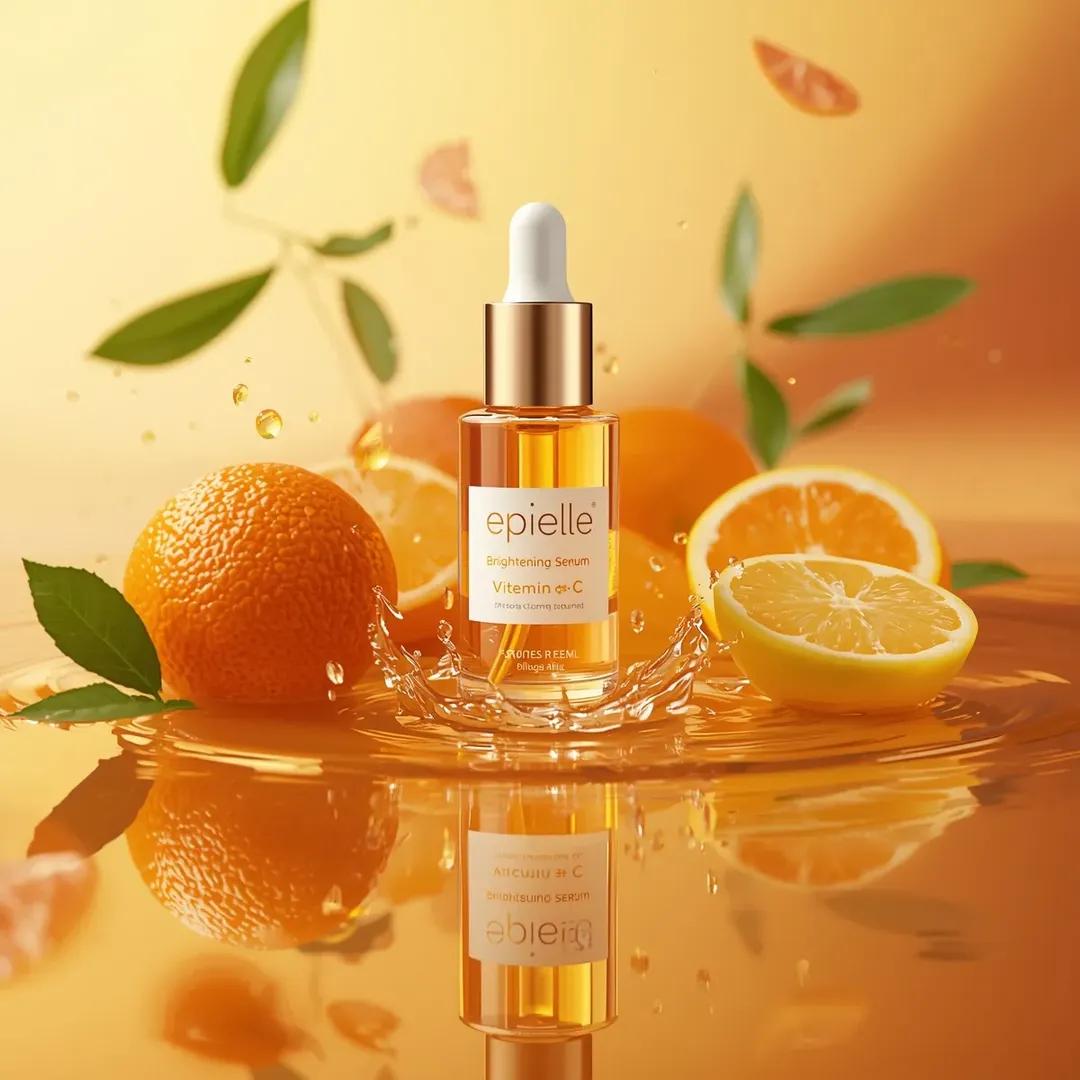
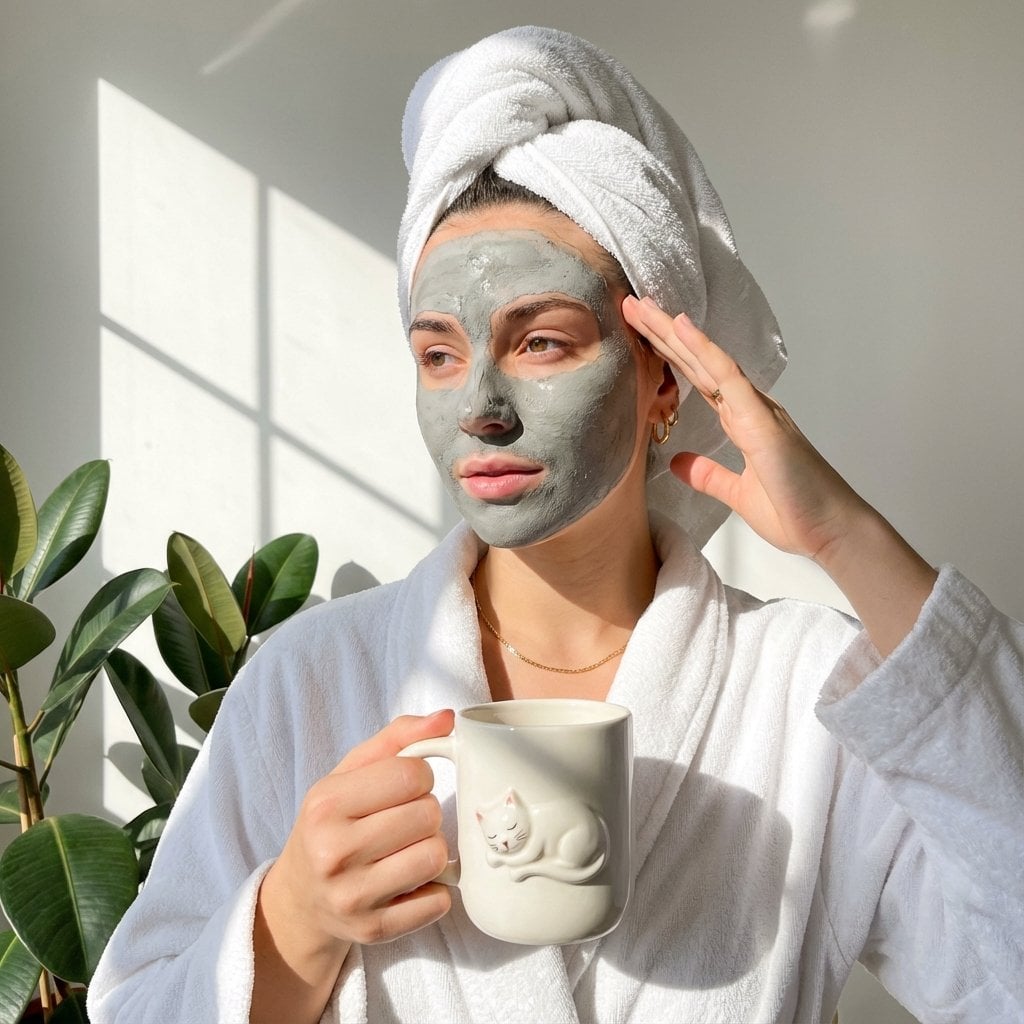

Start with GPT image 2.5, explore more ways to create
Make GPT image 2.5 your starting point for image generation and editing. Explore Flux and Nano Banana for different visual directions, or take a finished still into motion with separate Veo, Kling and Seedance video tools. Keep your creative workflow in one studio.
From prompt to finished image
Create and edit with GPT image 2.5
Bring a clear idea, a rough brief or a favorite reference. GPT image 2.5 helps you explore a visual direction, make targeted edits and turn creative experiments into images for real projects.
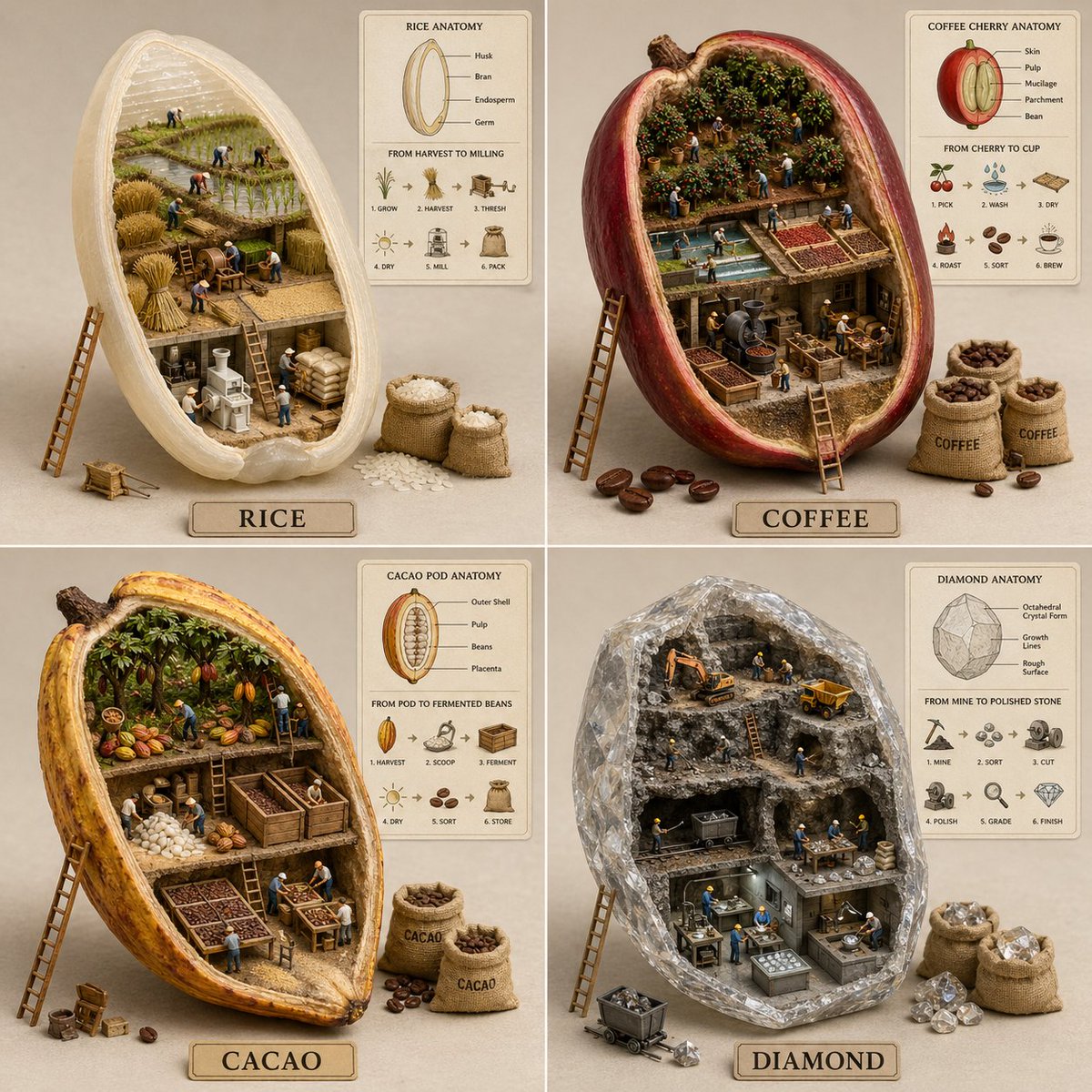
A clearer creative process
Why create with GPT image 2.5?
From a quick concept to a carefully directed edit, GPT image 2.5 brings your brief into the creative process. Keep the subject clear, compare variations and build on the direction that works.
Choose your GPT image 2.5 creative plan
Start with your next image, then choose a credit plan that fits how often you create. Check the selected model, output settings and displayed credit cost before each generation.


Made for your next brief
What will you create with GPT image 2.5?
Questions, answered
GPT image 2.5 FAQ
Everything you need to get started with GPT image 2.5: prompts, reference images, editing and credits.
GPT image 2.5 is OpenAI’s image model family for generating and editing pictures from text and references. Use GPT image 2.5 to explore product scenes, portraits, posters and other visual ideas. This is an independent creative studio, not an official OpenAI website.
Open the image generator, select GPT image 2.5 and write a prompt. Add a reference image if you want to guide the subject or style. Choose your output settings, check the credit cost and generate. Refine your instructions to explore another version.
GPT image 2.5 brings improvements to image detail, reference fidelity and precise editing, according to OpenAI. These make it useful for briefs where the subject, layout and small visual choices matter. Results still depend on your instructions, references and the complexity of the scene.
Start your GPT image 2.5 prompt with the subject and intended use. Add the setting, lighting, composition and aspect ratio. Put any exact image text in quotation marks. For edits, explain what to change and what to preserve. Adjust one instruction at a time.
Yes. Give GPT image 2.5 a reference you have permission to use, then describe the edit: a new background, a different style or a change to a specific detail. Keep your instructions explicit about what should remain. Upload limits are shown in the generator.
Create product imagery, portraits, campaign concepts, posters, social posts and presentation visuals. GPT image 2.5 works best with a clear creative brief. Review your GPT image 2.5 output for text accuracy, recognizable details and suitability for its intended use before publishing.
Include the exact wording in your GPT image 2.5 prompt and describe its placement and visual hierarchy. Keep headlines concise and tell the model which text matters most. Check spelling, spacing and readability in the finished image, especially for small labels or dense layouts.
Check the applicable service and model terms for your GPT image 2.5 project. Use references you have permission to upload and review logos, people and text before publication. Buying credits does not clear third-party rights in the material you provide.
The gallery contains examples from different models, with prompt and source information on each card. Use them as inspiration for GPT image 2.5, rather than assuming every example was generated with the same model. Adapt the brief to your own GPT image 2.5 project.
You can browse the prompt gallery for free. GPT image 2.5 generation uses account credits, with the cost shown before you start. Check your balance and the available credit plans to see what fits your needs; this is not an unlimited free generation service.
GPT image 2.5 creates and edits still images. For moving scenes, use the separate text-to-video or image-to-video tools with a video model. A finished GPT image 2.5 image can become a starting reference where the selected video model supports it.
Create your next image with GPT image 2.5
A product shot, a poster, a portrait or an idea you have not tried yet. Start with a prompt, add a reference if you need one, and bring your next visual to life.